

4XTREAM set-up guide
PLEASE NOTE THAT WE DO NOT SELL OR PROVIDE A PLAYER. ALSO WE ARE NOT AFFILIATED TO RECOMMEND THE PLAYERS BELLOW. WE JUST RECOMMEND THE BEST ONES THAT WORK WELL. ALSO NOTE THAT WE’RE SELLING IPTV LOGINS NOT PLAYERS TOO.
1-stEP
What You Need
An XTREAM code / M3U link.
Get yours by placing a new order. if you’ve already ordered skip this step.
2-step
Click on your Device category bellow to see the guide:
Note: The media players we recommend require a one-time fee of roughly $10 for lifetime access (though most offer a 7-day free trial so you can test them first before you pay), as reliable free options are no longer available. We have no affiliation with these players; we only recommend them because they work. If you choose to use a free alternative, please note that you do so at your own risk, as streaming quality can be highly unpredictable.
Supported Devices:
- Samsung Smart TV
- LG Smart TV
- Android TV
- Google TV
- Fire TV Stick
- Fire TV Cube
- Android TV Box
- Android Phones
- iPhone
- iPad
- Apple TV
- Windows
- macOS
- Roku
Step 1.1
Install IBO Player Pro from your device’s app store search tool searching : “ibo player pro”
Examples:
Samsung Smart Hub
LG Content Store
Google Play Store
Apple App Store
Microsoft Store
Step 1.2
for firestick, roku....
install it with DOWNLOADER APP. using the downloader code: 4738580
step-by-step with pictures: Setup Guide → Firestick

Step 2
Launch the application.
The first screen displays:
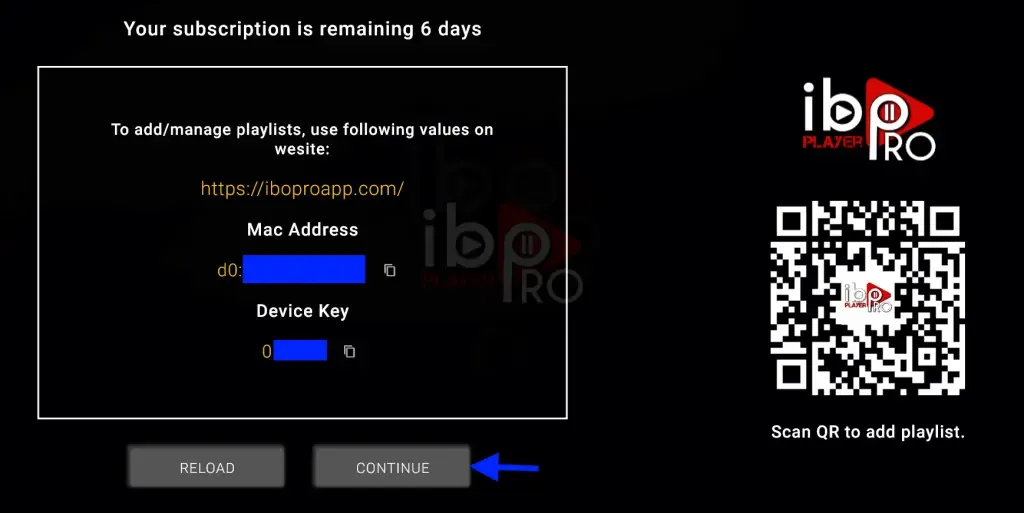
MAC Address
Device Key
Write both down.
Example:
MAC: 00:1A:79:XX:XX:XX
Device Key: A1B2C3D4
Step 3
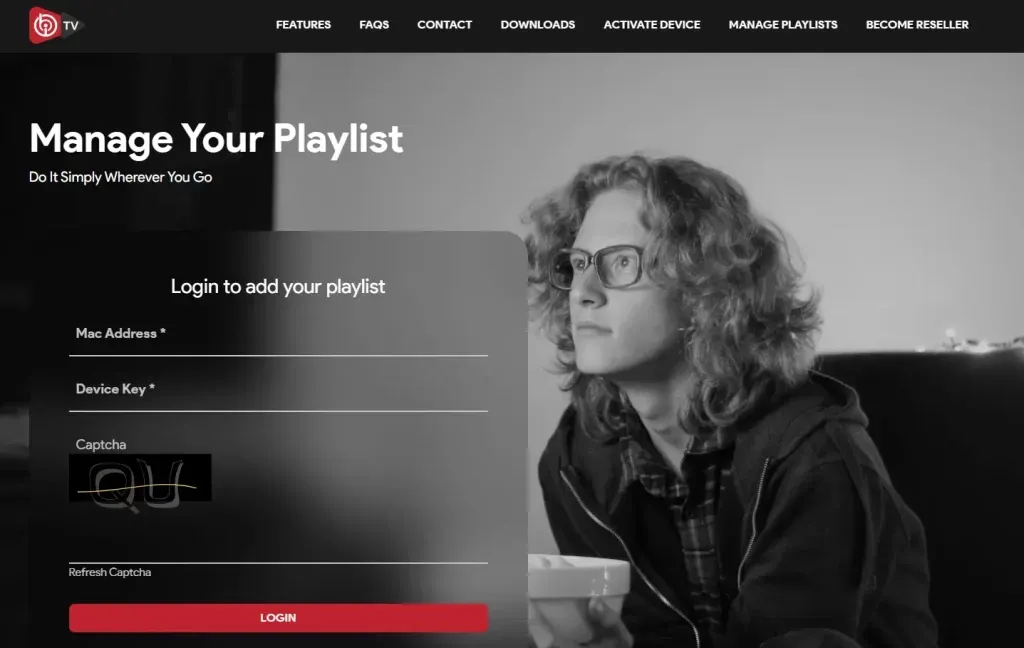
On your phone or computer, scan the QR code OR open the IBO Player Pro activation portal and sign in.
Upload your IPTV subscription using one of the supported methods. The portal associates your playlist with the MAC Address and Device Key shown in the app.
Step 4
Add M3U Playlist
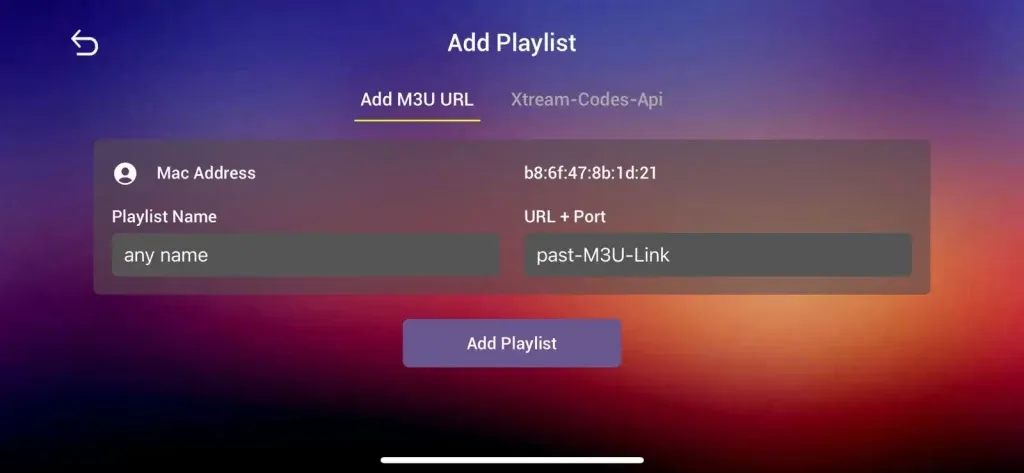
Playlist name: 4XTREAM
past your M3U link (the long one)
Save / Add playlist.
Step 5
Return to your TV.
Restart IBO Player Pro.
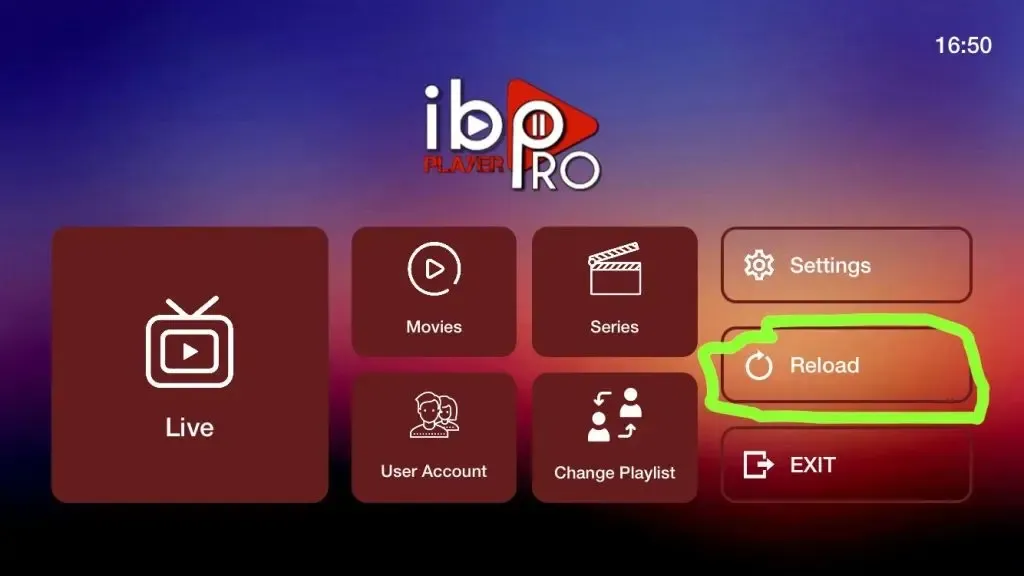
The application will automatically download
- Live TV
- Movies
- Series
- EPG
- Logos
That’s it. Enjoy it — and if you need help, open the chat on this page or message us on Telegram.
Recommended: UHF
UHF is one of the best IPTV players built specifically for Apple’s ecosystem. It supports:
- Xtream Codes
- M3U Playlists
- Live TV
- Movies & Series (VOD)
- EPG (TV Guide)
- Multiple playlists
- Favorites
- Picture-in-Picture (supported devices)
- Native Apple TV interface and Siri Remote support
Step 1
Open the App Store on your Apple TV.
Search for: “UHF”

Install the app.
Step 2
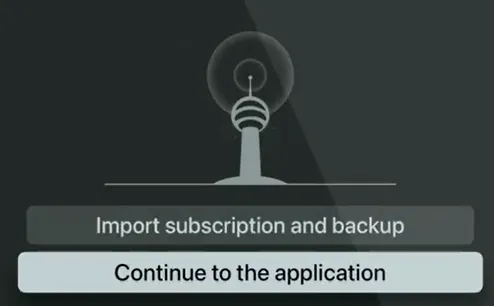
Launch UHF.
You’ll be asked to add a new playlist.
Select Add Playlist.
Step 3
Choose your login method.
Xtream Codes (Recommended)
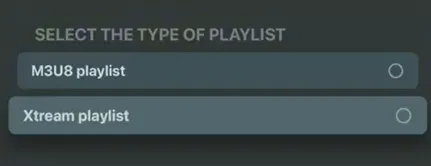
Enter:
NAME THIS PLAYLIST: 4XTREAM

URL to xtream server: "provided by provider"

Username: your username

Password: your password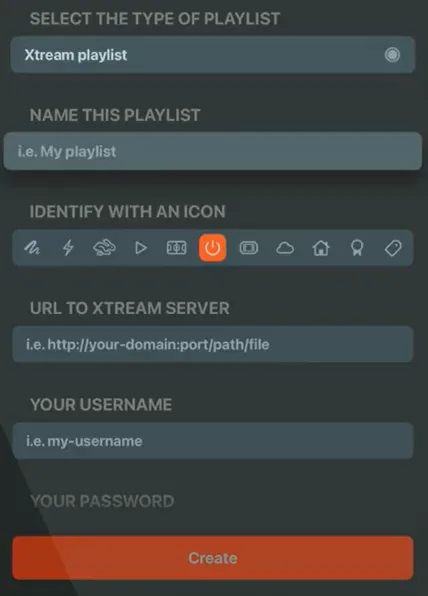
Press Create.
Step 4
Wait while UHF downloads:
- Live Channels
- Movies
- TV Shows
- Logos
- EPG
That’s it. Enjoy it — and if you need help, open the chat on this page or message us on Telegram.
Common Issues
Invalid Username or Password
- Double-check your credentials.
- Ensure your IPTV subscription is active.
Playlist Doesn’t Load
- Verify the M3U URL or Xtream Codes.
- Restart the app.
- Refresh the playlist.
Buffering
Possible causes:
- Slow internet connection.
- Weak Wi-Fi signal.
- IPTV provider congestion.
- VPN issues (if applicable).
A wired Ethernet connection is generally more stable than Wi-Fi.
No TV Guide (EPG)
- Wait a few minutes after the first login.
- Manually refresh the EPG from the app settings.
- Confirm your provider includes EPG data.
Black Screen
- Test another channel.
- Enable Hardware Decoding.
- Update the player to the latest version.
Internet Speed Recommendations
| Quality | Recommended Speed |
|---|---|
| SD | 5 Mbps |
| HD (720p/1080p) | 10–15 Mbps |
| Full HD | 20 Mbps |
| 4K | 35–50 Mbps |
For the best experience, use an Ethernet connection whenever possible, especially for HD and 4K streaming.